7 Underrated KNIME Nodes That Will Make Your Life Easier
KNIME offers more than 6,000 nodes, each with its own functions and use cases. For newcomers, with so many options, it can quickly feel overwhelming. Which nodes are truly essential to set up an efficient data analysis process? In this blog, I’ll start by sharing 7 underrated KNIME nodes that can make your life easier. After that, you’ll find a list of useful resources and links where you can learn more about KNIME nodes and how to use them.
The advantage of KNIME
Data preparation and manipulation are challenges every data analyst or data scientist knows. Whether you’re working in Python, R, SQL, or any other environment: before you can build models or run analyses, your raw data first needs to be cleaned, enriched, and transformed. It’s essential work, but also time-consuming and often invisible to the end user.
This is where KNIME stands out. Instead of writing long scripts, you build workflows using nodes that perform specific tasks and connect them in a logical sequence. This visual approach makes processes more transparent, repeatable, and accessible, even for those with little or no programming experience. But with so many nodes available, it can be difficult to know which ones you’ll need most often, and which can really make a difference in practice.
My Top 7 KNIME Nodes
To help you get started, here are seven KNIME nodes that make data preparation and manipulation significantly more efficient. They save time, bring structure, and help you move faster through the groundwork, so you can focus sooner on the fun part: analysis and modelling.
1. String Cleaner
Cleaning up text data used to be a pain. I often needed multiple nodes, multiple times — like the String Manipulator or String Replacer. Now, the String Cleaner node does it all in one go, across multiple columns. It can quickly clean and standardize text by removing:
- Accents and diacritics
- Non-ASCII and non-printable characters
- Numbers, punctuation, and symbols
- Leading, trailing, duplicate, or all whitespace
- Or even any custom characters you specify
This is especially useful when preparing messy string data before grouping, joining, or filtering.
Tip. Whenever you manipulate columns, first append with a suffix instead of replacing the original. That way you can check if the result looks right before overwriting your data. If the results are as expected, run the String Cleaner again this time with the Replace option.
2. Duplicate Row Filter
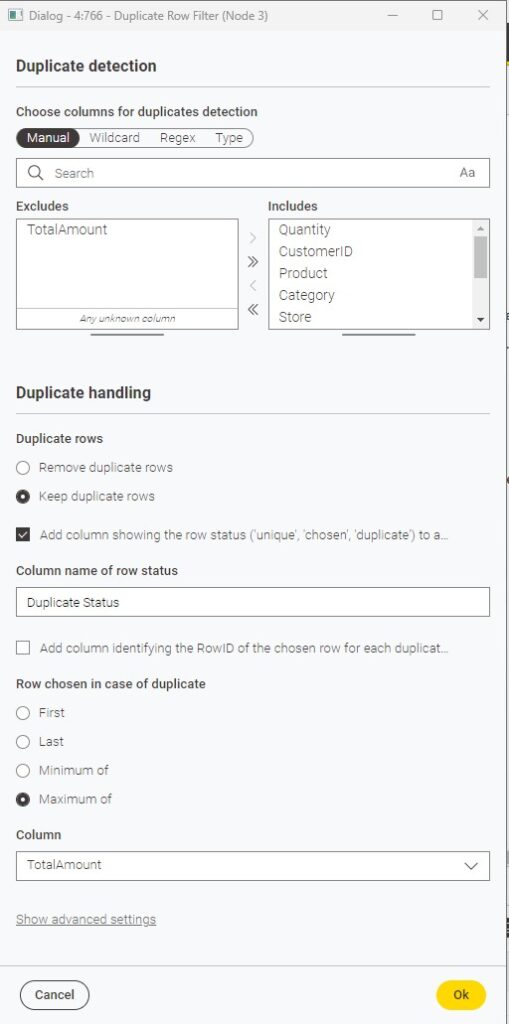
This is one of my favorite nodes. The Duplicate Row Filter makes it easy to spot and handle duplicates. The best part: you can define your own key. It doesn’t need to be the full record — just a subset of columns.
There are different strategies to handle duplicates, but I often start by adding a column that labels each row as unique, chosen, or duplicate. That way, I can first explore why those duplicates exist before deciding what to do with them.
3. Nominal Value Row Splitter
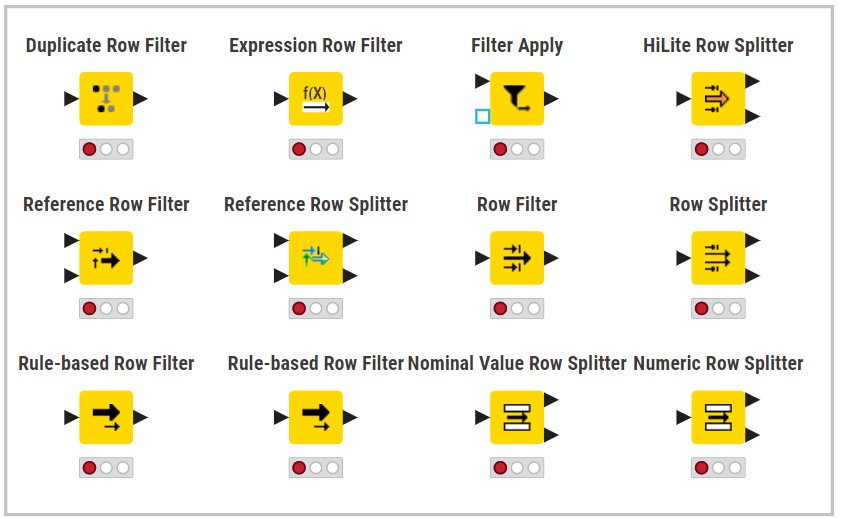
These nodes split rows into two outputs: matching and non-matching. Use the Nominal Value Row Splitter for nominal values, and the Row Splitter for all other datatypes. If you want to split based on a Date&Time column, I recommend using the Date&Time-based Row Filter.
Note. Splitter nodes are often easier to analyze than filters, since you can directly see which records were excluded. Great for quality checks and exploring unexpected cases.
4. Reference Row Filter / Splitter
The Reference Row Filter filters one dataset based on keys from another. You could also use a Joiner or Value Lookup node, but this one is more intuitive. Very useful for sub-setting customers, comparing lists, or validating records across datasets. Just select the column with the key and you’re good to go.
5. Table Manipulator
My Swiss army knife for data prep. With one node, you can:
- Filter out unnecessary columns
- Rename columns
- Change data types
- Reorder columns
That’s four actions in one node!
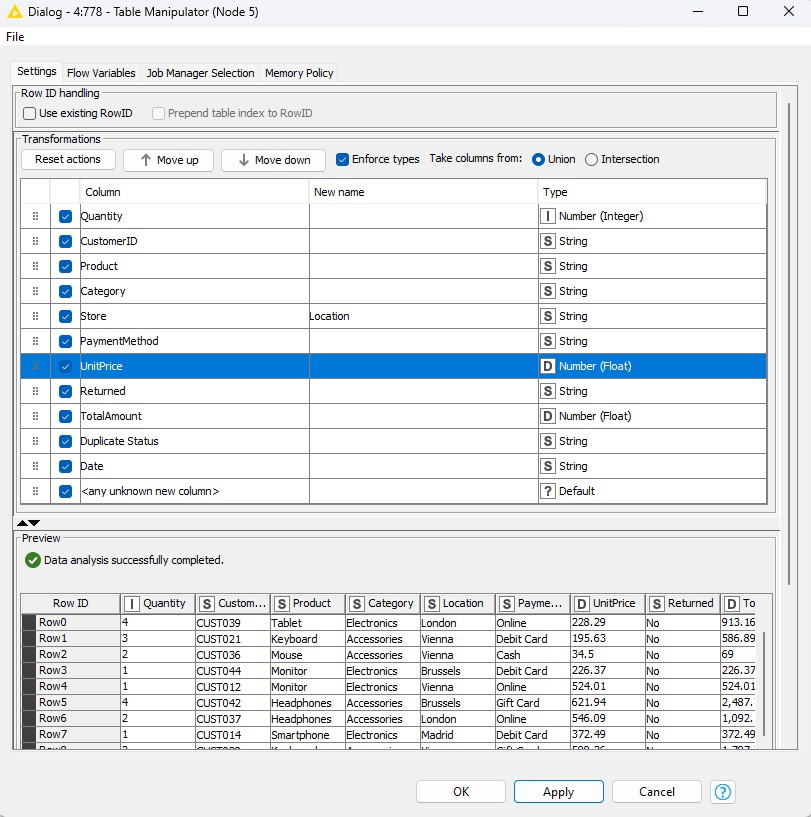
Hidden feature. You can add another table with the plus sign in the bottom left corner, and it will concatenate rows just like the Concatenate node. Very useful when combining datasets.
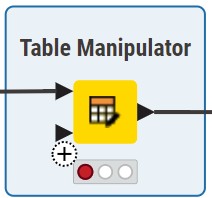
The Table Manipulator could be even more powerful if an “unselect all” box for wide tables would be available. Yet, this is still one of my most-used nodes.
6. Top k Row Filter
Select the top N rows based on a chosen measure. Perfect for finding best customers, top-selling products, or highest transactions. Keeps your analysis focused on the most relevant subset.
7. Expression
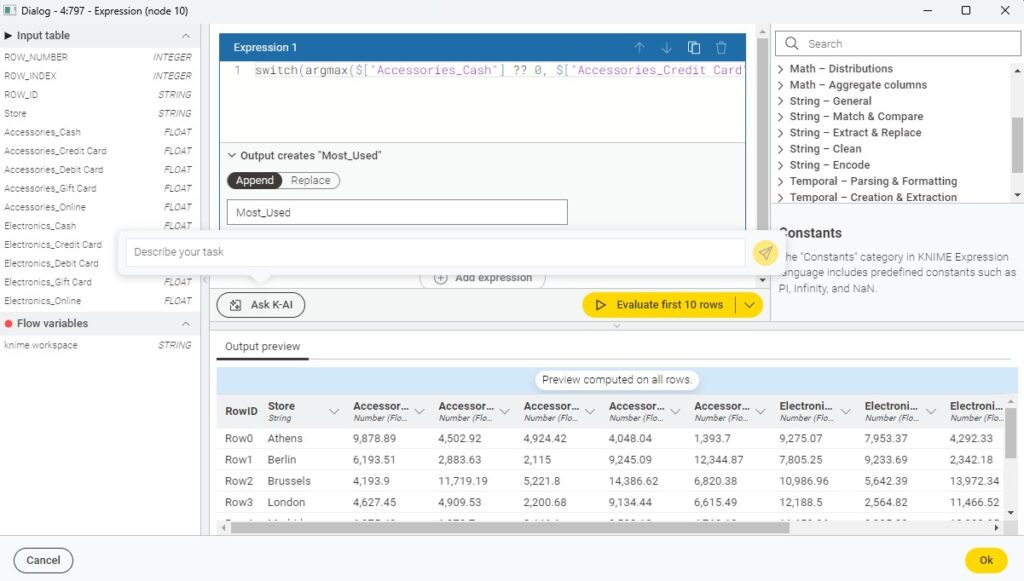
The Expression node is a powerhouse for data manipulation and can be powered by KNIME’s AI Assistant, K-AI. Instead of building transformations step-by-step with multiple nodes like Rule Engine or Math Formula, you can simply describe what you want in natural language. K-AI then generates the expression for you.
It works on numbers, strings, and dates. My advice: always validate the output. It’s still a black box, and sometimes you’ll need to refine your prompt. I usually save my K-AI prompts in a text file so I can reuse or tweak them later.
How to Find the Right KNIME Node
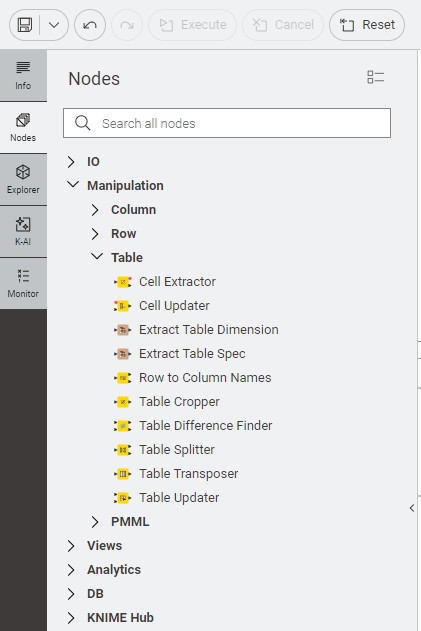
If you’re just starting out with KNIME and looking for a node to handle a specific task, begin with the ‘Tree View’ in the Node Explorer. Nodes are logically grouped by functionality, which makes it easier to see what’s available.
But the real question is: which node is best for which situation? The honest answer: it mostly comes down to experience. The more workflows you build, the more familiar you’ll become with nodes, and the better you’ll understand which ones are most efficient for a given context. This knowledge doesn’t come from reading alone, but from actively experimenting with KNIME. Here are a few resources that can help along the way:
- KNIME Hub and NodePit: search for nodes or explore complete workflows, which you can drag and drop directly into your own canvas.
- Just KNIME It Challenges: a great way to step outside your comfort zone. Try solving the challenge yourself, or learn from others’ submissions and discover which nodes they used in specific cases.
- KNIME Cheat Sheets: useful overviews for different domains (e.g.: data wrangling, KNIME Analytics Platform for Spreadsheet Users) and levels (from beginner to advanced), perfect for quickly finding the right node or function.
Don’t hesitate, try it yourself
In short: there are plenty of resources and tips out there. But the real value comes from experimenting yourself. Only by doing will you learn which nodes make the biggest difference in your own use cases.
Which KNIME node has made the biggest difference for you? Share it in the comments, I’d love to hear your experience.